Thursday, August 7, 2014

SQL server Reporting Services (SSRS) Architecture for AX 2012


1. User requesta a report :

A menu item in the Microsoft Dynamics AX client may be bound to a report for Reporting Services. After a user clicks the menu item, a parameters form is displayed to the user. The user enters parameters to filter the data that is displayed on the report.
The Microsoft Dynamics AX client then requests the report from an instance of Reporting Services. The request includes the parameters that the user entered.

2.Reporting Services receives the request and requests the report data from the Microsoft Dynamics AX server.

Reporting Services receives the request and examines the report. The report is stored as an .rdl file. The .rdl file indicates the report’s data source. The data source may be a Microsoft Dynamics AX query, a report data provider class, or an external data source that is accessed through report data methods.
If a Microsoft Dynamics AX data source is used for the report, Reporting Services uses the Microsoft Dynamics AX data extension to retrieve the data.

Reporting Services then requests metadata about the data source from Microsoft Dynamics AX. Then Reporting Services requests the data for the report.

3.The Microsoft Dynamics AX server receives the request and sends the report data back to Reporting Services.
The Microsoft Dynamics AX services examine the query in the Application Object Tree (AOT) to return the requested metadata. The services also run the query to generate the data for the report.

Microsoft Dynamics AX then returns the metadata and data to Reporting Services.

4.Reporting Services renders the report and sends it to the Microsoft Dynamics AX client.
The Microsoft Dynamics AX customization extension formats the report. The customization extension uses metadata to provide automatic formatting of data and can affect the positioning and layout of elements on the report.
Reporting Services then renders the report into a visual representation and sends that representation to the Microsoft Dynamics AX client.

5.The report is displayed to the user.
The Microsoft Dynamics AX client displays the report to the user in the report viewer control.

Best Practices

Best Practices for Developers:

1.     Variable or constant or parameter declarations should be as local as possible to utilize memory resources in an efficient way.

2.     Unused variables, methods, and classes should be removed from the code.

3.     The re-usability should be maximized. E.g. rather than repeating lines of code at different places, a single method can be written so that changes in the method can be reflected at all the places where this method is used.

4.     A method should perform a single well-defined task and be named according to the task performed.

5.     All the text used in Dynamics AX is supposed to be in a label

6.     A try or catch deadlock or retry loop should always be created around database transactions that can cause deadlocks.

7.     Prefer switch statement rather than multiple if-else statements.

8.     Remove commented code before shipping code.

9.     Follow indentation rules.

10. Follow case rules for naming classes, methods, tables, etc.

11. Methods should perform a single well defined task and from their name the task performed should be clear.

12. To ensure trustworthiness, appropriate access levels (public, private, or protected) should be assigned.

13. Parameter's names must start with an underscore (_) character besides following other generalized naming conventions.

14. Date conversion should be avoided as it will loose date properties and hence sometimes conversion may result in wrong information.

Table:
1.     The table name may consist of the following valuable information
2.     Prefix: Module name such as Cust for Account Payable, Sales for Account Receivables
3.     Infix: Logical description of the content
4.     Post fix: Type of data e.g. Trans (for transactions), Jour (Journals), Line (table containing detailed information about a particular record in header table), Table (primary main tables), Group, Parameters, Setup, or module name to which the table belongs
5.     Label is a mandatory property and tables must be labelled using Label ID only. The text value of Label ID must be unique in all languages supported.
6.     If a table belongs to one of the four types Parameter, Group, Main, or WorksheetHeader, then it must have an associated form to maintain the table records. This form should have a name identical to its display menu item (used to start this form) and like the table name. formRef is the property of a table for the name of the associated form.
7.     Title Field 1 and Title Field 2 should be mentioned
8.     TitleField1: The key field for the records in the table. This should be a descriptive title, if the key is information for the user.
9.     TitleField2: The description for the records in the table.


Monday, August 4, 2014

Go To Main Table Functionality

1) By using jumpRef() method

in ax 2009

 
\Forms\CustTable\Designs\Design\[Tab:Tab]\[TabPage:TabCommunication]\[Group:ContactInfo]\StringEdit:editContactPersonName\Methods\jumpRef

public void jumpRef()
{
    Args        args;
    FormRun     formRun;
    ;
    args = new Args(formstr(smmContactPerson));
    args.record(custTable);
    args.parmEnum(NoYes::Yes); // It's a Go To Main Table call
    formRun = classfactory.formRunClass(args);
    formRun.init();
    formRun.run();
    formRun.detach();
}

2) By using formRef  property

Select Table and Go to Properties and select the required form in the formRef property

Ex: Address  Table

Tuesday, July 29, 2014

Lookup Ways in Ax 2009

Lookup:  A lookup form is a small form that you use to select a value for a control. To open a lookup form, click the lookup button (Lookup button) that appears with the control. To select a value, double-click the record that you want to appear in the control.

1.By Autolookup


 2. By Method(SysTableLookup)
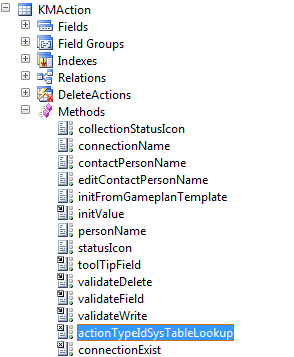
     DataDictionary/Tables/KMAction/actionTypeIdsysTableLookup


 create a lookup form to a control
    http://msdn.microsoft.com/EN-US/library/hh185372.aspx

3.  By EDT


  in AX-2012

1. First create New EDT.

2.Create New Table Name is "TestParent" Table, then drag and drop the newly created EDT in "TestParent" Table

3.Create Index for new created EDT in "TestParent" Table , the properties on index is AllowDuplicates to No and Alternativekey to Yes.

4. Then select the "TestParent" Table and right click on it select properties sheet set the "PrimaryIndex" property i.e. the newly created index.

5. Then go to EDT and right click on it, select property sheet then go to "ReferenceTable" property set it to "TestParent" Table Name.

6. Create a Second Table i.e “ChildTable”.

 7. Then Drag and drop the EDT, then it will prompt the one dialog box, in that dialog box click Yes button then lookup will created on that field.


4. By TitleField1 and TitleField2

5. By Relations

Friday, July 25, 2014

"You are not a recognized user of Microsoft Dynamics AX. Contact your system administrator for help".

i have restored a database from one environment to another environment. after that i am trying to open Ax showing a error ""You are not a recognized user of Microsoft Dynamics AX. Contact your system administrator for help".  "


solution:

http://blogs.msdn.com/b/axsupport/archive/2011/09/02/steps-to-restore-an-ax-database.aspx


find out SID:

go to run-->type regedit


Thursday, July 3, 2014

software and hardware requirements for ax 2012

Network Requirements:
Microsoft Dynamics AX can operate on networks that use Internet Protocol Version 4 (IPv4) or
Internet Protocol Version 6 (IPv6).
network response time:
Client to AOS: 100 megabits per second (Mbps)
AOS to DataBase: 100Mbps

Domain requirements

  1. Computers that run Microsoft Dynamics AX components must belong to an Active Directory domain,and Active Directory must be configured in native mode.
  2.  Computers that run Microsoft Dynamics AX components must have access to other computers in Active Directory. These computers may be either in the same domain or in another trusted domain.
  3. The domain controller must run in Windows 2008 mode or later.
  4. To support e-mail alerts in Microsoft Dynamics AX, an SMTP (Simple Mail Transfer Protocol) server must be present in the environment.
Hardware Requirements:

Hardware that is required to install and run the AOS and the Microsoft Dynamics AX client.
Processor: Intel Pentium/Celeron family or compatible Pentium III Xeon or higher processor. We
recommend a processor speed of 1.1 GHz or higher.
RAM: 4 GB or more of RAM for server computers.
            2 GB or more of RAM for client computers.
Monitor: Super VGA (1024x768) or higher resolution monitor
Other: A DVD drive is required for an installation from a DVD.

S/W requirements for all computers:
The following software must be present on a computer before any Microsoft Dynamics AX components
can be installed:
  • Microsoft .NET Framework : Most Microsoft Dynamics AX components, including the Setup wizard, require .NET Framework 3.5 with Service Pack 1.
For those components that require .NET Framework 4.0 or .NET Framework 4.5, it is listed as an
additional requirement in this document.
  •  Microsoft Windows Installer 3.1 or Windows Installer 4.0
Supported server operating systems: 
The server operating systems that are supported for Microsoft Dynamics AX 2012 components.
Windows Server 2012 Standard Edition or Datacenter Edition
Windows Server 2012 is supported by default with Microsoft Dynamics AX 2012 R2. To use Windows Server 2012 with an earlier version of Microsoft Dynamics AX 2012, you must install cumulative update 5 for Microsoft Dynamics AX
Windows Server 2008 R2 Standard Edition,Enterprise Edition, Web Edition, or Datacenter
Edition
Windows Server 2008 Standard Edition, Enterprise Edition, Web Edition, or Datacenter Edition, with
Service Pack 2 (Only 64-bit versions of Windows Server 2008 are supported.)
Software requirements for server computers:
  1. Databases
  2. Application Object Server (AOS)
  3. Enterprise Portal
  4. Enterprise Search
  5. Help Server
  6. Microsoft SQL Server Reporting Services extensions
  7. Microsoft SQL Server Analysis Services configuration
  8. Web services on Internet Information Services (IIS)
  9. Synchronization proxy for Microsoft Project
  10. Synchronization service for Microsoft Project
  11. Management utilities
Software requirements for database servers
Microsoft SQL Server 2012, Standard Edition, Enterprise Edition, or Business Intelligence Edition.
Service Pack 1 (http://www.microsoft.com/enus/download/details.aspx?id=35575) for Microsoft SQL Server 2012 is supported with the following updates:
 Cumulative update 1 for Microsoft Dynamics AX 2012 R2
 Cumulative update 5 for Microsoft Dynamics AX 2012
SQL Server 2008 R2, Standard Edition, Enterprise Edition, or Datacenter Edition.
Service Pack 1
(http://www.microsoft.com/download/en/details.aspx?id=26727) is supported, but it is not required unless you are installing Reporting Services extensions.
Service Pack 2
(http://www.microsoft.com/download/en/details.aspx?id=30437) is supported with cumulative update 4 for Microsoft Dynamics AX 2012
SQL Server 2008, Standard Edition or Enterprise Edition, with Service Pack 1.
Service Pack 3 is supported with cumulative update 4 for Microsoft Dynamics AX 2012.
Application Object Server (AOS)
 .NET Framework 4.5 is supported by default with Microsoft Dynamics AX 2012 R2, and with cumulative update 5 for Microsoft Dynamics AX 2012
–or–
.NET Framework 4.0, with the hotfix from Knowledge Base article 2390372
 SQL Server 2008 Native Client
Enterprise Portal
1 .Web server role
2. IIS 7.0, IIS 7.5, or IIS 8.0 (supported only with Microsoft Dynamics AX 2012 R2)
3. ASP.NET 2.0
4.Microsoft SharePoint Foundation 2013 (supported only with Microsoft Dynamics AX 2012 R2) 
   –or–
  Microsoft SharePoint Server 2013, Standard Edition or Enterprise Edition
  (recommended) (supported only with Microsoft Dynamics AX 2012 R2)
  –or–
 SharePoint Foundation 2010 
–or–
SharePoint Server 2010, Standard Edition or Enterprise Edition (recommended)
5. SQL Server 2008 R2 Analysis Management Objects (AMO)
Reporting Services extensions
1.Microsoft SQL Server Reporting Services 
To create a PowerView report that displays data from an analysis cube, you must use SQL Server 2012
Reporting Services with Service Pack 1 and cumulative update package 4
(http://support.microsoft.com/kb/2833645) or a later update for SQL Server 2012. Reporting Services
must be installed in SharePoint integrated mode.
 If you are using SQL Server 2008 Reporting Services, Service Pack 2
(http://support.microsoft.com/kb/2498535) or a later update for SQL Server 2012 is required.
2.Windows PowerShell 2.0
Analysis Services integration
To create a PowerView report that displays data from an analysis cube,you must use SQL Server 2012
Analysis Services with Service Pack 1 and cumulative update package 4
(http://support.microsoft.com/kb/2833645) or a later update for SQL Server 2012.
 If you’re using SQL Server 2012 Analysis Services, you must install cumulative update package 1
 SQL Server Management Studio
 SQL Server Business Intelligence
Development Studio (BIDS) if you are using SQL Server 2008 or SQL Server 2008 R2
–or–
SQL Server Data Tools (SSDT) if you are using SQL Server 2012
Management utilities:
Windows PowerShell 2.0 (http://support.microsoft.com/kb/968929)
Software requirements for client computers
  1. Windows client
  2. Office Add-ins
  3. Remote Desktop Services integration
  4. Debugger
  5. Microsoft Visual Studio Tools
  6. Trace Parser
  7. .NET Business Connector
Supported client operating systems
Windows 8, Windows 8 Pro, and 
Windows 8 Enterprise Edition
Windows 8 is supported by default with Microsoft Dynamics AX 2012 R2.
To use Windows 8 with an earlier version of Microsoft Dynamics AX 2012, you must install cumulative update 5 for Microsoft Dynamics AX 2012
Both 32-bit and 64-bit versions of Windows 8 are supported
Windows 7 Professional Edition,Ultimate Edition, or Enterprise Edition
Both 32-bit and 64-bit versions of Windows 7 are supported.
Windows Vista Business Edition,Ultimate Edition, or Enterprise Edition, with Service Pack 2
Both 32-bit and 64-bit versions of Windows Vista are supported.
Software requirements for the Microsoft Dynamics AX client
1. .NET Framework 4.5 is supported with
Microsoft Dynamics AX 2012 R2, and with cumulative update 5 for Microsoft Dynamics AX 2012
–or–
.NET Framework 4.0
2. Internet Explorer 10.0
–or–
Internet Explorer 9.0
–or–
Internet Explorer 8.0
–or–
Mozilla Firefox 11.0 (supported only with Microsoft Dynamics AX 2012 R2)
–or–
Mozilla Firefox 3.5
–or–
Safari 5.1.2
3. Office 2013
 –or–
Office 365 
–or–
2010 Microsoft Office release
–or–
2007 Office release, Service Pack 3
4. SQL Server 2008 R2 Analysis Management Objects (AMO)
Components for Ax-2012
 

update_recordset with joins

 update_recordset with joins update_recordSet storeTransfer         setting      TransactionId = transfertable.TransferId     join transfert...